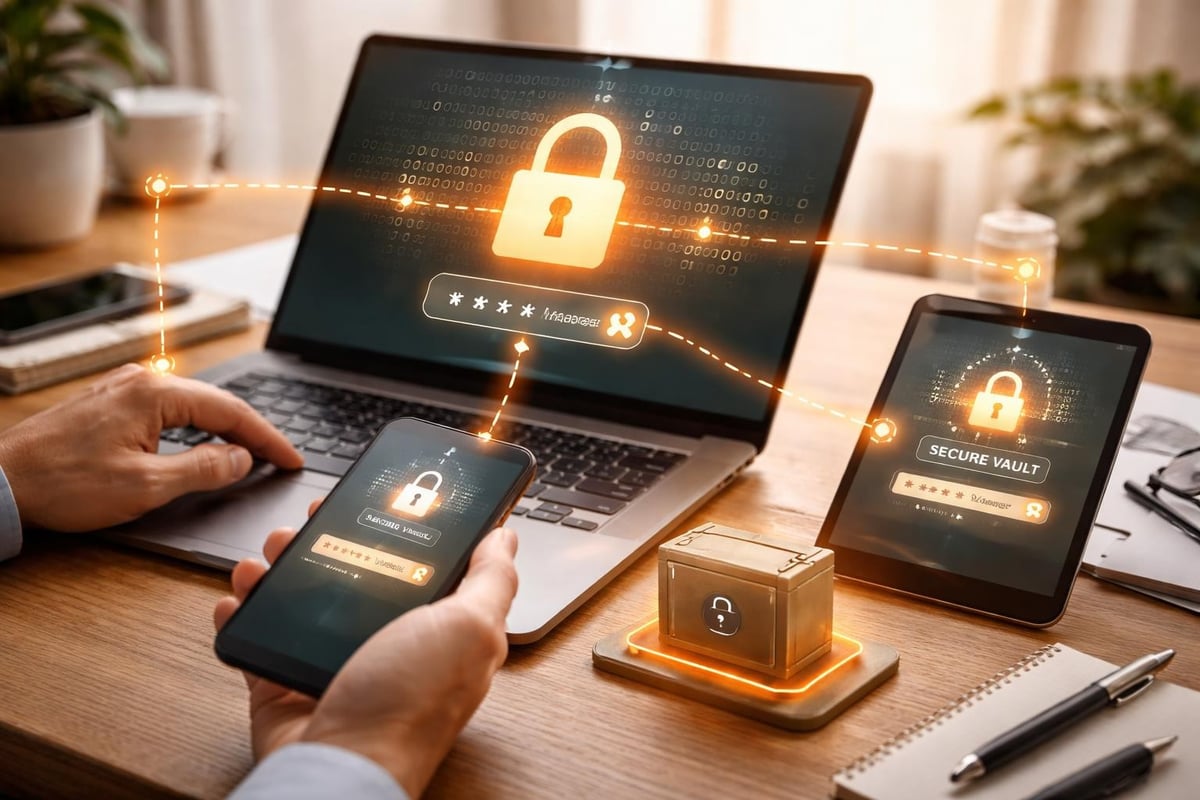
Password Managers And Privacy
A password manager is a tool that stores login credentials in an encrypted vault and fills them into websites or apps. It usually also generates new passwords so you do not reuse the same secret across services. Privacy enters the picture because login credentials are a common path to account takeover, and account takeover often leads to data exposure through password reset flows, session hijacking, and changes to recovery details.
In practical terms, a manager reduces the number of times you type passwords and reduces the chance you reuse a password that later leaks. If you use a manager to create unique passwords for email, banking, and health-related portals, a single breach of one site does not automatically give attackers a working password for the rest. The vault encryption and the way the app handles autofill also affect what third parties can infer from your behavior.
Some managers offer browser extensions, mobile apps, and desktop clients. The extension typically watches for login fields on pages you visit, then fills credentials. That behavior can be privacy-relevant because it creates a technical link between your browsing session and the vault content, even when the vault itself stays encrypted on the device.
Common Privacy Pain Points
People often treat password managers as a magic shield, but the privacy outcome depends on configuration and on what the threat model actually is. A manager cannot stop phishing that tricks you into entering a password on a fake site if the extension fills it there too. It also cannot prevent a website from tracking you after you sign in, since the tracking happens through cookies, device fingerprints, and account identifiers.
Credential reuse is a frequent failure mode. When the same password appears in multiple services, a leak from one site can lead to login attempts on other sites. Attackers then use password reset emails to regain access, and those emails can reveal metadata such as the time of compromise and the recovery address. A manager that generates unique passwords reduces this cross-site blast radius.
Another pain point is misunderstanding what gets encrypted. Most reputable managers encrypt the vault with a key derived from your master password, but the exact architecture differs by vendor. Some store encrypted data on their servers for sync, while others offer local-only modes. If you enable cloud sync, the provider may still learn metadata such as account creation time, device count, and sync frequency, even when they cannot read the vault contents.
Browser extensions add another dependency. The extension needs permission to run on certain sites, and the permission scope can widen exposure if you grant it broadly. I have seen people leave default extension permissions unchanged after installing, which is convenient and also a little sloppy. A manager that supports per-site access controls can reduce that surface area.
Finally, privacy can be undermined by weak operational habits. If you reuse the same master password across services, or if you store the master password in a note app, the vault becomes a single point of failure. If you unlock the vault for long periods, an attacker with temporary access to your device may extract more than you expect, depending on the device lock settings.
How To Set Up For Privacy
Choose A Trustworthy Vault
Start with the vault model: local-only versus cloud sync. Local-only setups reduce server-side metadata exposure, but they require careful backup planning. Cloud sync can be practical, yet it introduces a provider account and device management. If you use cloud sync, review whether the vault is end-to-end encrypted and whether the provider can decrypt it; many vendors describe this in their security documentation, but the details vary.
Look for features that reduce passive tracking. Some managers offer privacy modes such as limiting analytics, disabling telemetry, or restricting extension behavior. On a recent test system, a manager extension version labeled 4.2.1 showed a setting for “Run on all sites” versus “Only on selected sites,” and the difference mattered for privacy because it changed where the extension could observe login forms.
Use Unique Passwords And Recovery
Generate unique passwords for every account that matters: email, banking, identity providers, and any portal tied to personal records. For recovery, treat the recovery email and recovery phone as part of your privacy boundary. If an attacker gains access to your email, they can reset passwords across many services. A manager helps by storing recovery codes and by generating strong passwords for recovery accounts, but it does not replace the need to secure the email account itself.
Enable multi-factor authentication where it fits. Many managers support storing TOTP codes or using passkeys, and those reduce reliance on SMS. If you use TOTP, confirm the time-based codes are protected by your vault and that you have a backup method for the authenticator. If you use passkeys, confirm you understand how your device sync and platform recovery works, since losing a device can become a recovery problem.
Lock Down Autofill Permissions
Limit extension permissions to the minimum set of sites you actually use. If the manager supports “only when you click” autofill or per-site allowlists, use them. This reduces the chance that the extension interacts with login pages you did not intend to use. It also reduces the amount of information the extension can observe during browsing, which matters for privacy even when the vault stays encrypted.
Use short unlock timeouts on mobile and desktop. Many apps offer a setting like “lock after 1 minute” or “lock after 5 minutes.” Shorter timeouts reduce exposure if your device is left unlocked, though they increase friction. Choose a timeout that matches your real behavior, not a theoretical ideal.
Plan Backups And Master Password Safety
Backups prevent lockout, but backups can also create privacy risk. If you export the vault to a file, store it encrypted and offline when possible. If you rely on cloud sync, confirm how you recover after device loss and whether you can revoke access from old devices. A manager that supports device revocation helps when you suspect a stolen phone.
Protect the master password with a password manager-resistant approach: a long, unique phrase and a safe way to remember it without writing it in plain text. If you use a browser password manager as a stepping stone, remember that it may not provide the same vault controls as a dedicated password manager. I have seen people migrate from a browser vault to a dedicated vault and forget to remove old saved passwords, which leaves extra copies behind.
Educational Case Examples
Scenario 1: Reused Password After a Breach
A person uses the same password for a shopping site and for a health portal. A breach exposes the shopping site credentials, and attackers try the same password on other sites. With a password manager, the person had unique passwords for each account, so the health portal password did not match the leaked value. The attacker still might attempt phishing, but the credential reuse path fails.
Scenario 2: Extension Permissions and a Fake Login Page
A person receives a phishing email that links to a lookalike login page. The password manager extension autofills the password into the fake page. The person notices the URL mismatch and closes the tab before submitting. The account remains safe because the attacker never receives the password. This scenario shows both the benefit (fewer typing errors) and the limitation (autofill can speed up credential entry on malicious pages).
Privacy Checklist And Tradeoffs
| Decision Point | Privacy Upside | Privacy Downside | What To Do |
|---|---|---|---|
| Local-only vault | Less server metadata about sync activity | Harder recovery across devices; backup mistakes can expose data | Use encrypted offline backups and test restore once |
| Cloud sync | Device portability and easier recovery | Provider can see metadata; breach of provider account is a risk | Use strong login to the manager account and enable MFA |
| Extension on all sites | Less friction for autofill | More opportunity to observe login fields on unrelated sites | Restrict to selected sites or require user action |
| Long unlock timeout | Fewer unlock prompts | More exposure if device is briefly accessible | Set short timeouts and rely on OS screen lock |
Quick step-by-step checklist:
- Pick a vault mode (local-only or cloud sync) and confirm how encryption works in the vendor’s documentation.
- Generate unique passwords for email and any accounts tied to personal records.
- Turn on MFA for the email account and for the password manager account.
- Restrict extension permissions to selected sites and set autofill to require user action when available.
- Set a short vault lock timeout and verify your device screen lock triggers reliably.
- Test recovery: sign out, unlock on a second device, and confirm you can restore access without guessing.
Common Mistakes That Leak
One frequent mistake is leaving old passwords in the browser after migrating. That creates multiple copies of credentials, and the browser vault may have different security controls and different sync behavior. Another mistake is using the same master password across multiple password managers, which turns a single compromise into a broader one.
People also store recovery codes in plain text. A screenshot of backup codes in a shared photo album can become a privacy leak even if the vault is encrypted. If you store recovery codes, store them in the vault or in an encrypted offline location, and treat them like keys rather than like trivia.
Autofill settings can also cause trouble. If the manager autofills on every page load, it may fill credentials into malicious forms faster than you can notice. A safer pattern is to require a click-to-fill or to restrict the extension’s site access so you only interact with it when you intend to log in.
Finally, some users skip the “first week” cleanup. They add the manager, generate a few passwords, and stop. The privacy gain comes from replacing reused passwords across the accounts that matter, not from adding a vault while keeping the same weak habits for the rest of the login surface.
FAQ
Does A Password Manager Stop Tracking?
No. A password manager mainly protects credentials. Websites can still track you after login using cookies, account IDs, and device signals, and the manager does not remove that tracking.
Can A Breach Expose My Passwords?
It depends on vault encryption and on how the attacker gained access. If the vault is encrypted with a key derived from your master password, a server breach may not reveal plaintext passwords, but metadata and account-level compromise risks still exist.
Is Autofill A Privacy Risk?
Autofill can increase exposure to malicious login pages because it reduces friction for entering credentials. Privacy-wise, extension permissions determine how broadly the extension can observe login fields.
Should I Use Cloud Sync?
Cloud sync trades server metadata and provider account risk for easier recovery and multi-device access. If you use it, enable MFA for the manager account and review device management and revocation options.
What Happens If I Forget The Master Password?
Most reputable managers cannot recover a forgotten master password because they do not keep a decryptable copy of the vault. Recovery usually depends on pre-set recovery options or backups, so test your restore path before you need it.
Author's Insight
Password managers improve privacy mainly by reducing credential reuse and by lowering the chance of typing errors that lead to account compromise. Their privacy impact depends on vault encryption, sync mode, extension permissions, and how quickly the vault locks after inactivity. A manager does not prevent website tracking after login, and it does not stop phishing that tricks you into submitting credentials on a fake page.
When evaluating a setup, focus on measurable controls: MFA coverage, extension scope, vault lock timeout, and recovery testing. If you can restore access on a second device without guessing, your privacy plan is more likely to survive real-world mishaps.
Key Takeaways
- Unique passwords reduce cross-site damage from a single breach, which directly supports privacy.
- Encryption and sync mode determine what a provider can see; metadata exposure still exists with cloud sync.
- Extension permissions and autofill behavior affect both privacy and phishing risk.
- Secure the email account and recovery details because they often control password reset access.
- Test recovery and remove old saved passwords to avoid leaving extra credential copies behind.