Public Wi‑Fi Basics
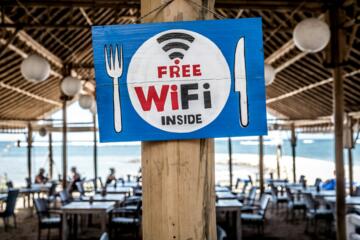
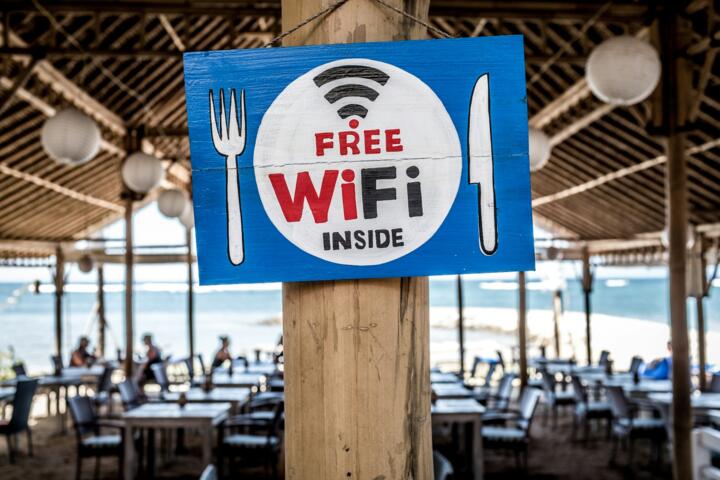
Public Wi‑Fi refers to wireless networks offered in places like cafés, hotels, airports, and clinics. The risk comes from how devices connect, how traffic is encrypted, and whether the network is trustworthy. A measurable starting point: many public hotspots still rely on captive portals that redirect you to a login page before full internet access. In 2017, the U.S. National Institute of Standards and Technology (NIST) published guidance on using HTTPS and avoiding insecure network practices, which remains relevant for consumer behavior. Another concrete fact: WPA2 (Wi‑Fi Protected Access 2) uses AES-CCMP for data encryption, but misconfiguration or downgrade paths can weaken protection.
Encryption decides exposure.
When you open a website over HTTPS, your browser negotiates encryption keys and protects content from passive eavesdropping. When you use HTTP, your device sends data in a readable form that can be captured by anyone with access to the same local network. Even with HTTPS, metadata can leak, including the domains you visit and timing patterns. If you connect to a rogue hotspot that imitates the venue name, your device may send credentials to the wrong system, and the attacker can relay traffic while intercepting what you type on the fake login page.
Skip the risky shortcuts.
Main Problems and Pain Points
People often assume “public Wi‑Fi” means “everyone can see everything,” but the real failure modes are more specific. First, many apps and websites still include mixed content: an app might load a page over HTTPS while a tracking script or embedded resource loads over HTTP, which can expose parts of the session. Second, some devices auto-connect to previously seen networks, which can lead to silent reconnection to a network that has changed. Third, captive portals can be abused: a portal can trick you into entering credentials on a page that looks legitimate, and the page may not use end-to-end encryption.
Passwords travel in plain text.
Biological consequences matter because health data is personal data. If an attacker captures logins to email or a health portal, they can access appointment details, medication lists, and symptom searches stored in those accounts. If you reuse passwords across services, a single exposed credential can cascade into other accounts. The mechanism is not “Wi‑Fi harms your body”; the mechanism is account compromise and privacy loss, which can lead to stress and unwanted disclosure.
Trust the lock icon.
Supporting technologies also shape risk. Many public networks use NAT and shared routing, so multiple users share the same upstream connection. That setup makes traffic correlation easier for an observer on the local network. Some networks use older Wi‑Fi security modes; WPA2-Enterprise and WPA3 are generally stronger than open Wi‑Fi, but the user experience often hides the difference.
One setting can undo safety.
Safer Choices and Fixes
Use HTTPS and verify
What to do: before entering any sensitive information, confirm the site uses HTTPS and that the browser shows a valid certificate. Why it works: HTTPS encrypts content between your device and the site, reducing exposure to local eavesdropping. What it looks like: the address bar shows a lock and the domain matches the service you expect, not a lookalike. Tools: browser certificate warnings should be treated as a stop sign, not a “continue anyway” prompt. Outcome target: you reduce passive capture risk, though you do not fix rogue hotspot credential phishing.
Certificates stop passive snooping.
Avoid captive portal logins
What to do: use the venue’s Wi‑Fi only for low-sensitivity tasks, and avoid entering email or banking credentials on a captive portal page. Why it works: captive portals intercept the initial connection flow, and attackers can mimic portal pages. What it looks like: a portal page that asks for more than basic access details, or a portal URL that does not match the venue’s domain. Tools: check the browser address bar after the portal loads; if it never reaches the real service domain, pause. Outcome target: you prevent credential entry into pages that sit outside the end-to-end encryption you expect.
Portal pages are a trap.
Prefer a VPN with care
What to do: use a reputable VPN app on your phone or laptop when you must use public Wi‑Fi for sensitive tasks. Why it works: a VPN creates an encrypted tunnel from your device to the VPN provider, reducing local network visibility. What it looks like: the VPN icon stays active, and DNS queries are handled through the tunnel when the app supports it. Tools: on iOS and Android, check VPN status in settings; on desktop, confirm the VPN client shows “connected.” Realistic outcome: a VPN reduces local eavesdropping, but it does not protect against malware on your device or phishing inside the VPN tunnel.
VPNs reduce local visibility.
Turn off auto-connect
What to do: disable “auto-join” or “connect automatically” for public networks, then connect manually each time. Why it works: manual selection prevents silent reconnection to a network that has changed name or configuration. What it looks like: you see the network list and choose the correct SSID, then verify the connection details. Tools: Wi‑Fi settings on iOS, Android, Windows, and macOS all include options to forget or disable auto-join. Outcome target: you cut the chance of connecting to a lookalike network without noticing.
Manual beats silent reconnection.
Use device security basics
What to do: keep your operating system and browser updated, and enable a screen lock with a short timeout. Why it works: many Wi‑Fi risks involve session hijacking, credential theft, or malicious apps that exploit outdated software. What it looks like: your browser version number updates regularly; for example, Chrome and Firefox release frequent security patches, and the update cadence is visible in the “About” page. Tools: check your OS update status; on Windows, “Windows Update” shows the last installed security update date. Outcome target: you reduce the probability that known vulnerabilities help an attacker intercept sessions.
Updates close known holes.
Limit what you do on Wi‑Fi
What to do: separate sensitive actions from public Wi‑Fi. Why it works: the less sensitive traffic you send, the less data an attacker can capture even if encryption fails. What it looks like: you read general health information on Wi‑Fi, but you wait to log into a patient portal or banking app until you are on your mobile data. Tools: use app-specific behavior; many banking apps block logins on “untrusted” networks, which can be annoying but safer. Outcome target: you reduce exposure of credentials and session tokens.
Do less, leak less.
Check for DNS and leaks
What to do: when using a VPN, confirm it also protects DNS (Domain Name System) requests. Why it works: without DNS protection, an observer can still learn which domains you query, even if traffic is encrypted. What it looks like: VPN apps often include a setting for “block ads” or “DNS protection,” and the status can be shown in the app UI. Tools: on desktop, you can test DNS behavior with built-in network diagnostics; on mobile, rely on the VPN app’s documented features. Outcome target: you reduce domain-level metadata leakage, though you still may reveal timing patterns.
DNS leaks reveal browsing.
Use two-factor authentication
What to do: enable two-factor authentication (2FA) for email and health-related accounts, ideally using an authenticator app or hardware key. Why it works: even if a password is captured, the attacker still needs the second factor. What it looks like: login prompts ask for a rotating code, and recovery codes are stored offline. Tools: Google Authenticator, Microsoft Authenticator, Authy, and hardware keys like YubiKey are common options; the exact choice depends on your device ecosystem. Outcome target: you reduce account takeover risk, though you must protect recovery codes and avoid phishing prompts.
2FA blocks many takeovers.
Case Examples
Clinic Wi‑Fi and symptom search
An anonymized patient connects to a clinic’s public Wi‑Fi to look up general information about a medication side effect. The patient avoids logging into the patient portal on that network and uses only HTTPS pages with a valid certificate. The patient later switches to mobile data to sign in and view lab results. The risk reduced here is credential exposure; the remaining risk is that general browsing still reveals domain-level metadata to the local network observer.
General info stays safer.
Hotel hotspot and email login
An anonymized traveler joins a hotel Wi‑Fi network, then attempts to log into email after the captive portal loads. The login page requests credentials on a domain that does not match the email provider, and the browser shows a certificate warning. The traveler closes the tab, reconnects to the Wi‑Fi, and then logs in only after reaching the real provider domain over HTTPS. The lesson is that captive portals and lookalike pages can turn a normal login into a credential capture event.
Stop on certificate warnings.
Comparison Checklist
| Option | Best for | Main risk | What to check |
|---|---|---|---|
| HTTPS only | Reading pages, non-login tasks | Rogue hotspots and phishing | Lock icon, correct domain, no certificate warnings |
| VPN + HTTPS | Sensitive browsing on the go | Device malware, phishing inside tunnel | VPN connected, DNS protection on, certificate valid |
| Mobile data | Logins, banking, patient portals | Carrier-side issues (rare compared to local Wi‑Fi) | Use the official app, verify account prompts |
| Public Wi‑Fi without checks | None for credentials | Credential capture, session hijack | Avoid entering passwords; if you must, stop and verify |
Choose the least risky path.
Common Mistakes
One mistake is treating “Wi‑Fi name matches the venue” as proof of safety. Attackers can set up lookalike SSIDs, and some devices auto-join the strongest signal. Another mistake is entering credentials right after the captive portal loads, which can route you through a page that is not the real service. A third mistake is ignoring certificate warnings; those warnings often indicate a mismatch in encryption identity, which is the exact condition attackers exploit.
Never click through warnings.
People also reuse passwords across email, banking, and health portals. If one account is compromised, the attacker can try the same password elsewhere, which turns one Wi‑Fi incident into multiple account takeovers. Another practical error is leaving VPN off “just for a minute,” then using it later; session tokens and DNS behavior can differ across those moments, and the risk window is not always obvious.
One minute still matters.
Some readers rely on “incognito mode” as a privacy shield. Incognito reduces local history, but it does not prevent credential phishing, and it does not stop a rogue hotspot from capturing what you type. A final mistake is assuming that because a site is HTTPS, the login flow is safe; phishing pages can still use HTTPS with their own certificates, and the domain still matters.
Incognito is not protection.
FAQ
Can public Wi‑Fi read my passwords?
It can when you send credentials over unencrypted connections or when you enter them on a fake login page. HTTPS reduces passive reading, but captive portals and rogue hotspots can still capture what you type if the page is not the real service domain.
Does HTTPS stop all Wi‑Fi attacks?
HTTPS blocks passive eavesdropping on content, but it does not stop phishing, malware, or account takeover after credentials are captured elsewhere. A valid certificate and correct domain reduce risk, yet they do not fix device compromise.
Is a VPN enough protection on public Wi‑Fi?
A VPN reduces local network visibility and can protect DNS depending on configuration. It does not protect against phishing pages that trick you into entering credentials, and it does not replace device security updates or two-factor authentication.
What should I check before using a hotspot?
Verify you are connecting to the expected SSID, avoid entering sensitive credentials on captive portal pages, and confirm the target site uses HTTPS with a valid certificate. If the browser shows certificate warnings, stop and switch networks.
How do I reduce risk for health portals?
Prefer mobile data for logins, enable two-factor authentication on the account, and avoid signing in on public Wi‑Fi unless you use HTTPS and a VPN. Store recovery codes offline so you can regain access if a session is compromised.
Author's Insight
Public Wi‑Fi risk comes from specific mechanisms: unencrypted traffic, credential entry on non-endpoint pages, and device or browser trust failures. The most reliable consumer controls are simple: use HTTPS with correct domains, avoid captive-portal credential entry, keep devices updated, and add two-factor authentication to email and health accounts. A VPN reduces local network visibility, but it cannot fix phishing or malware on your device. If you want a practical rule, treat any certificate warning or unexpected login domain as a reason to switch networks and try again.
Mechanisms beat myths.
What to Remember
Public Wi‑Fi can expose data through credential capture and metadata leakage, not because Wi‑Fi “reads your mind.” Next steps: connect manually, verify HTTPS and domains, avoid entering passwords on captive portals, and use a VPN plus two-factor authentication when you must work on the go. Benefits include reduced passive eavesdropping and fewer account takeovers, while limits remain: rogue hotspots and phishing still work if you type credentials into the wrong place. If you suspect your account was accessed, change passwords from a trusted network, review recent logins, and contact the service’s support; for urgent medical concerns, contact your clinician directly rather than relying on potentially compromised accounts.
Act fast, then verify.