AI Inbox Triage Basics
AI inbox triage uses machine learning to classify messages by intent, sender, and content patterns, then suggests actions like “move to folder,” “summarize,” or “flag for review.” In practice, most systems combine traditional email metadata (From, To, subject, mailing list headers) with text signals from the message body. Some tools also learn from your manual moves, which means your past behavior becomes part of the model’s future suggestions.
A common example is a “priority inbox” view that elevates messages from contacts or threads you frequently open, while demoting newsletters and automated alerts. Another example is an email assistant that drafts a reply or produces a short summary; those features often run on the message text and attachments, which changes the privacy and risk profile. If you have a health-related appointment email, you want it to stay visible even when it looks like a calendar reminder or a billing notice.
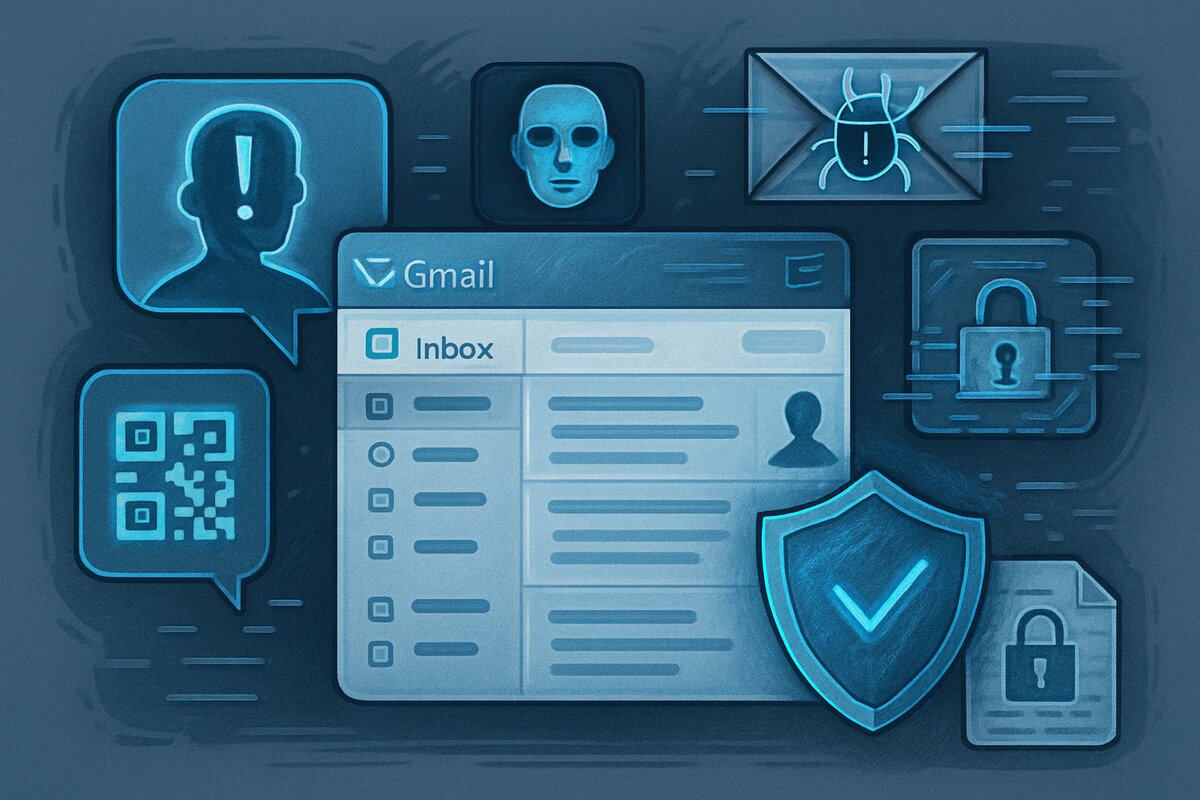
One practical detail: many assistants show a “processed by AI” indicator or a settings page that lists what features are enabled. On Gmail, for instance, the exact labels and options vary by account type and UI version, and the wording can change after updates (I noticed this around a mid-2024 UI refresh). Treat those labels as the source of truth rather than assuming the feature name matches the underlying behavior.
Where Inbox Systems Fail
People often expect AI to behave like a perfect filter, then blame the tool when it misses edge cases. The biggest failure mode is misclassification: a legitimate message gets treated like a newsletter, or a time-sensitive thread gets buried with low-priority mail. This happens more often with short emails, unusual subject lines, or messages that rely on images or PDFs for the key information.
Another common mistake is mixing “sorting” with “reply drafting” without checking the output. Summaries can omit dates, phone numbers, or medication instructions if those details appear in a table, a scanned document, or an attachment. Reply drafts can also introduce incorrect assumptions when the original message is ambiguous, which is especially risky for health logistics like dosage changes or appointment times.
Inbox triage depends on supporting technologies: spam filtering, phishing detection, thread reconstruction, and sometimes OCR for attachments. If your email provider’s spam filter already quarantines messages, the AI layer may never see them. If your provider uses third-party scanning for security, the AI feature may rely on already-processed content. These dependencies matter because they determine what the AI can and cannot classify.
Finally, learning from user actions can lock in errors. If you repeatedly move a certain sender to a “low priority” folder, the model may generalize that behavior to similar messages, even when the next one contains urgent information. That feedback loop can be helpful, but it can also become a quiet source of missed mail.
Solutions And Advice That Work
Start With Safe Scopes
Begin by limiting AI actions to low-risk categories, then expand once you trust the results. A practical approach is to enable AI summaries or “suggested labels” for newsletters and marketing mail first, while keeping transactional and health-related mail on a manual review path. If your tool offers a “review before applying” mode, use it for the first 2–3 weeks. You save time, reduce noise, and the inbox stops winning.
Use explicit rules for high-stakes senders: add filters for your clinic, pharmacy, insurer, and any care coordination contacts. Even if AI can classify these messages, deterministic rules reduce the chance of misclassification. When a message matches both an AI category and a manual rule, the manual rule should win; many clients let you order rules so the most specific one applies first.
One small aside: in Outlook desktop, rule order and “stop processing more rules” can change outcomes in ways that feel arbitrary until you test them. Create a test rule that targets a harmless label first, then confirm it triggers on a real sample message before you touch anything health-related.
Measure Accuracy With Samples
AI triage improves when you evaluate it like a system, not like a vibe. Pick a fixed window—two weeks is usually enough to see patterns—and collect a small sample of messages that were moved, summarized, or flagged. Track three counts: messages that should have been high priority but were demoted, messages that were correctly prioritized, and messages that were incorrectly flagged as urgent.
Use a simple spreadsheet with columns for date, sender category (clinic, pharmacy, insurer, newsletter), AI action taken, and your final decision. If you see repeated errors for one sender type, adjust your deterministic filters or add a “never demote” rule for that sender domain. In many setups, you can also adjust “priority” settings based on who you reply to, which changes the model’s training signal.
If your tool supports it, review the “activity” or “labels applied” history. Some assistants show which messages were summarized or used for training, and that audit trail helps you spot when the system is acting on the wrong content (for example, a thread with multiple topics).
Use Summaries With Verification
Summaries are best treated as a reading aid, not as the final source of truth. For health logistics, open the original message when it contains dates, medication names, dosages, or billing amounts. If the summary omits an attachment, open the attachment directly; OCR and document parsing can fail on low-resolution scans.
When you draft replies with AI, keep a short “human check” checklist: confirm the appointment date/time, confirm the recipient address, and confirm any numbers copied from the message. If the assistant suggests a phone number or a dosage, verify it against the original text. This is especially relevant for messages that include tables, because table extraction often degrades when formatting is inconsistent.
One practical detail: document parsing quality varies by file type. A PDF with selectable text usually extracts more reliably than an image-only scan, and the difference shows up in how accurately the assistant summarizes the content.
Protect Privacy And Data
AI inbox features can read message content to classify, summarize, or draft replies. Check the provider’s privacy documentation and the specific settings for AI features, because “AI assistant” can mean different processing paths. Look for controls that limit processing to your device, disable learning from your content, or restrict AI features to certain message types.
Be cautious with sensitive health information. If your email provider offers an option to avoid using content for training, enable it. If you use a third-party plugin or add-on, verify what it can access and whether it stores message text. Many tools require broad permissions to operate, and those permissions can persist even after you stop using the feature.
Also consider legal and policy constraints. In the United States, HIPAA applies to covered entities and business associates, not to every consumer email account. If you are a patient using a personal email account, HIPAA may not govern your provider’s handling, but your clinic may still have policies about how it communicates. When in doubt, use the communication channel your clinic specifies for medical details.
Case Examples You Can Replicate
Example 1: Clinic appointment reminders. A person receives appointment emails plus a monthly newsletter from the same clinic domain. They enable AI suggestions for “newsletter vs transactional,” but they also create a rule: any email with subject containing “appointment” or “visit” goes to a “To Review” folder. After two weeks, they find that one reminder was demoted because the subject was short and the body contained the date in an embedded image. They fix it by adding a rule for the clinic’s sender address and by reviewing messages that include attachments.
Example 2: Pharmacy and insurer billing notices. A person uses an assistant summary feature for all incoming mail. They notice that summaries sometimes omit the last four digits of an account number shown in a PDF statement. They switch to a verification workflow: summaries remain enabled, but any message with “statement,” “invoice,” or “EOB” triggers manual open of the attachment. Over a month, they reduce time spent scanning while avoiding the risk of acting on incomplete summary text.
Checklist For Choosing Settings
| Feature | What It Usually Does | Main Risk | Safer Default |
|---|---|---|---|
| AI Sorting | Classifies messages into categories and suggests moves | Misclassification hides urgent mail | Use “suggest” mode and review first |
| AI Summaries | Condenses message text and sometimes attachments | Omitted numbers or dates | Verify health logistics in the original |
| AI Reply Drafts | Suggests response text based on the thread | Incorrect assumptions in replies | Draft only; keep a human check list |
| Learning From Actions | Adapts categories based on your moves | Reinforces past mistakes | Pause learning for high-stakes senders |
Step-by-step checklist for a cautious rollout:
- Create deterministic rules for clinic, pharmacy, insurer, and any care coordination contacts.
- Enable AI sorting in “suggest” mode for newsletters and low-stakes alerts.
- Enable AI summaries only for messages that do not contain medication instructions or billing numbers.
- Review a 20–50 message sample after 14 days and record misclassifications.
- Adjust rules for the specific failure patterns you observe, then repeat the sample check.
- Turn on AI reply drafts only after you confirm the assistant preserves dates and identifiers correctly.
Common Mistakes That Erode Trust
One mistake is treating AI categories as authoritative. If a message is labeled “promotions,” it can still contain a time-limited health benefit or an insurer notice. Another mistake is ignoring attachments because the summary looks complete. Many critical details live in PDFs, and extraction quality varies by scan quality and formatting.
People also over-trust “urgent” flags. Some systems treat keywords like “action required” as urgency signals, even when the message is routine. If you rely on urgency flags, test them against your own history of what actually required action.
Another failure pattern is enabling too many AI features at once. When something goes wrong, you cannot tell whether the issue came from sorting, summarization, or reply drafting. Start with one feature, measure it, then add the next feature after you understand its error modes.
Finally, avoid promotional settings that claim to “clean everything.” A safer approach is to keep a review folder for demoted mail during the trial period. That folder acts like a safety net while you learn how the model behaves with your specific mix of senders.
FAQ
Does AI read my email content?
Many AI inbox features require access to message text to classify, summarize, or draft replies. The exact scope depends on the provider and the feature settings; check the privacy and permissions pages for the specific AI feature you enable.
Can AI move important health emails to spam?
AI sorting can misclassify messages, but spam filtering and security quarantine are separate systems. If a message is quarantined by spam/phishing filters, the AI layer may never see it.
Are AI summaries reliable for dates and numbers?
Summaries can omit or misread details, especially when information appears in tables, scanned images, or poorly formatted PDFs. For health logistics, verify dates, dosages, and billing amounts in the original message or attachment.
How do I stop AI from learning the wrong thing?
Use deterministic rules for high-stakes senders and review AI-applied actions during a trial window. If your tool offers a “do not use my content for training” or learning controls, enable them for sensitive categories.
What’s a safe first setup for a messy inbox?
Start with AI suggestions for low-risk newsletters, keep transactional and health-related mail on rule-based folders, and enable summaries only as a reading aid. After 2–4 weeks, adjust based on a small misclassification sample.
Author's Insight
AI inbox triage is best treated as a classifier plus a user interface, not as a medical-grade decision system. The classifier’s accuracy depends on message structure, sender consistency, and how the provider processes attachments. Summaries and drafts add convenience, but they also add a new failure mode: omission or misinterpretation of key details. A cautious rollout uses deterministic rules for health-related senders, measures misclassifications over a fixed window, and verifies any numbers or dates against the original message.
Key Takeaways
- Use AI for suggestions and reading support, not as the only gatekeeper for health-related mail.
- Separate sorting from summarization and reply drafting so you can identify which feature causes errors.
- Measure outcomes with a small sample over 2–4 weeks, then adjust rules based on observed failure patterns.
- Verify dates, dosages, and billing numbers in the original message or attachment, especially when content appears in PDFs or images.
- Review AI privacy settings and permissions, since inbox features may process message content and attachments.